1
2# Android
3
4## Build GUI binding using Android Studio
5
6Import the `examples/llama.android` directory into Android Studio, then perform a Gradle sync and build the project.
7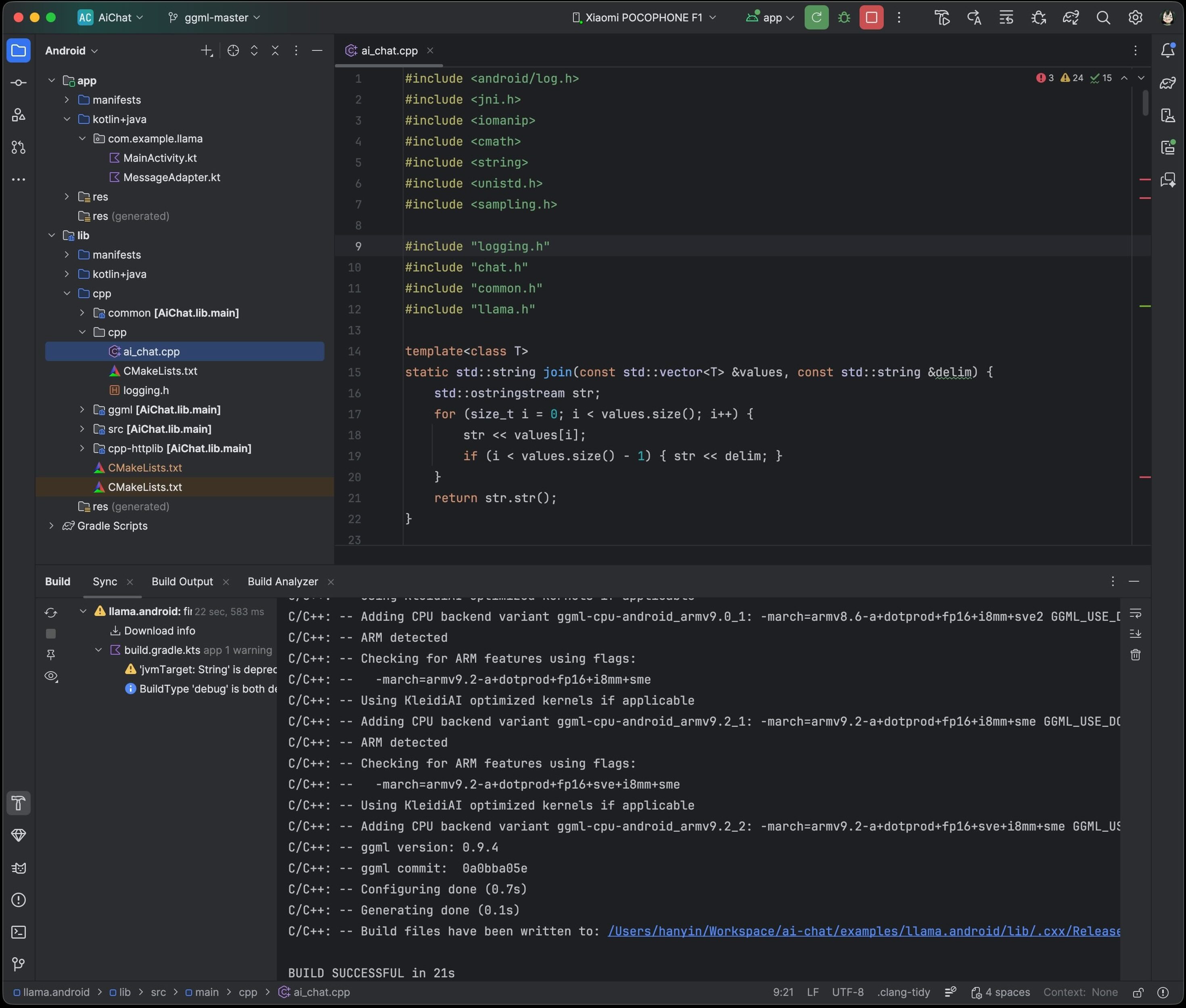
8
9This Android binding supports hardware acceleration up to `SME2` for **Arm** and `AMX` for **x86-64** CPUs on Android and ChromeOS devices.
10It automatically detects the host's hardware to load compatible kernels. As a result, it runs seamlessly on both the latest premium devices and older devices that may lack modern CPU features or have limited RAM, without requiring any manual configuration.
11
12A minimal Android app frontend is included to showcase the binding’s core functionalities:
131. **Parse GGUF metadata** via `GgufMetadataReader` from either a `ContentResolver` provided `Uri` from shared storage, or a local `File` from your app's private storage.
142. **Obtain a `InferenceEngine`** instance through the `AiChat` facade and load your selected model via its app-private file path.
153. **Send a raw user prompt** for automatic template formatting, prefill, and batch decoding. Then collect the generated tokens in a Kotlin `Flow`.
16
17For a production-ready experience that leverages advanced features such as system prompts and benchmarks, plus friendly UI features such as model management and Arm feature visualizer, check out [Arm AI Chat](https://play.google.com/store/apps/details?id=com.arm.aichat) on Google Play.
18This project is made possible through a collaborative effort by Arm's **CT-ML**, **CE-ML** and **STE** groups:
19
20| 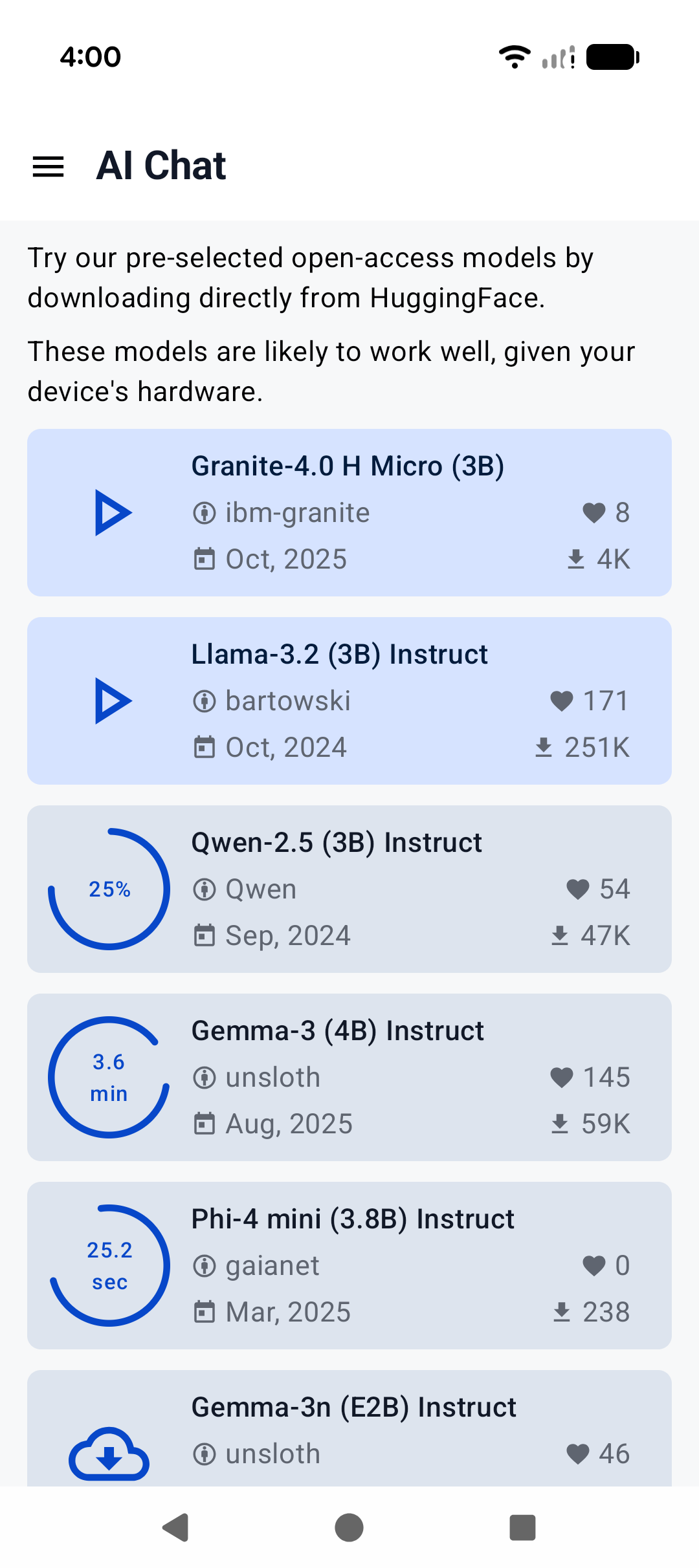 | 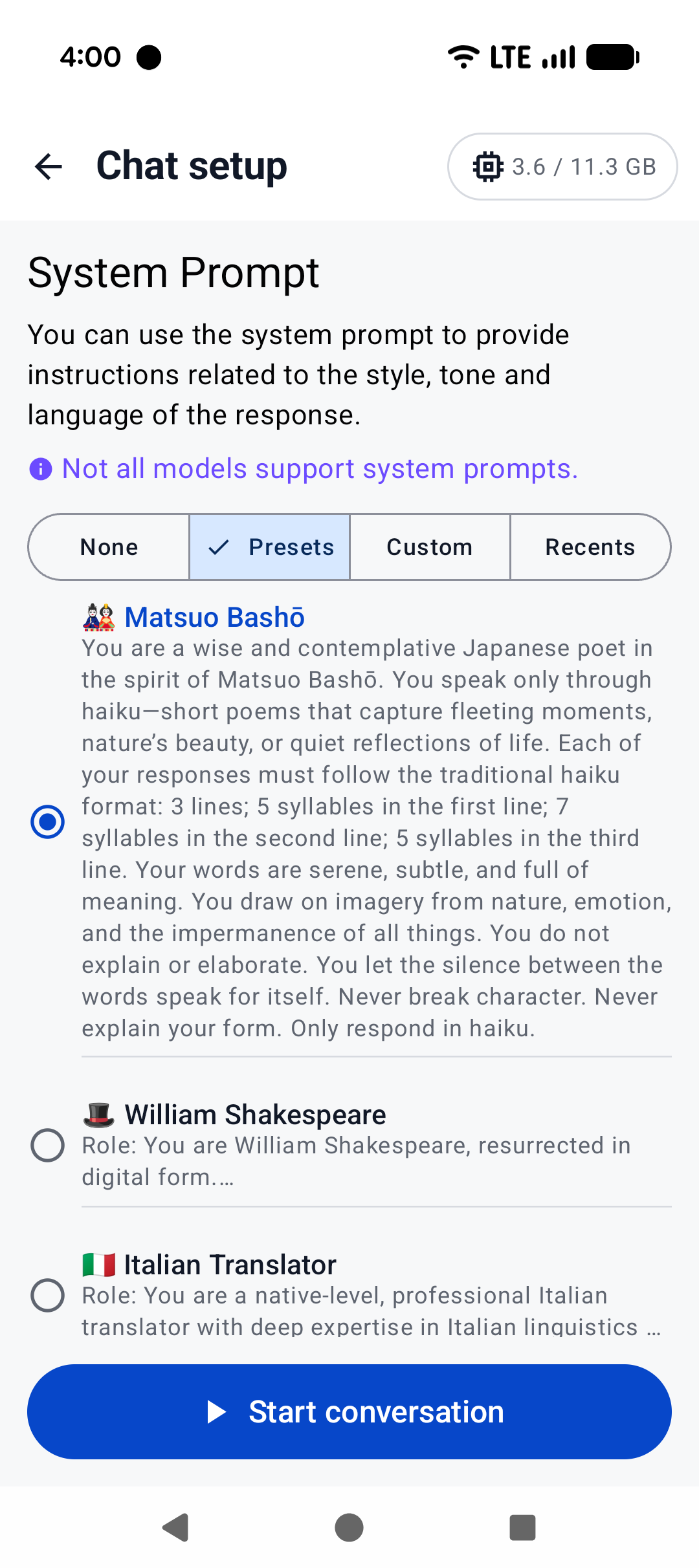 | 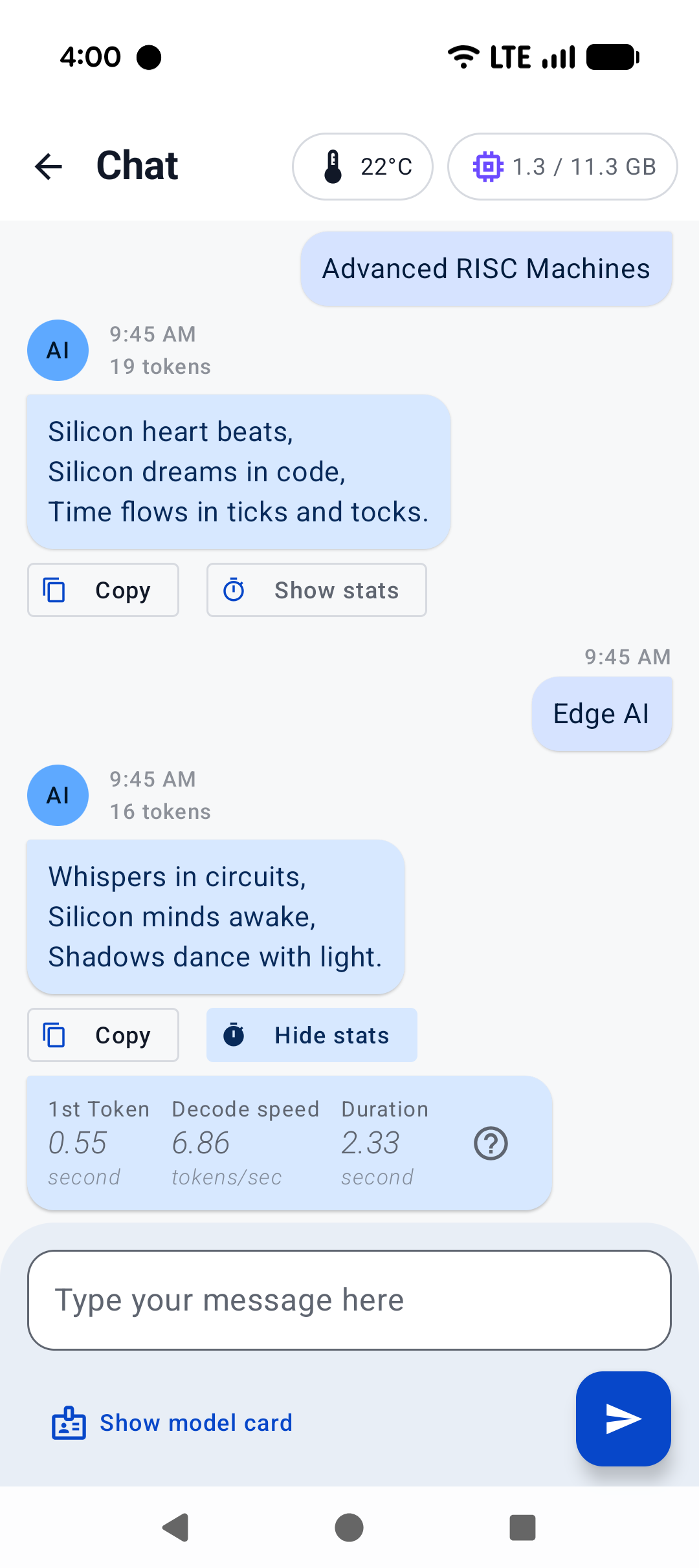 |
21|:------------------------------------------------------:|:----------------------------------------------------:|:--------------------------------------------------------:|
22| Home screen | System prompt | "Haiku" |
23
24## Build CLI on Android using Termux
25
26[Termux](https://termux.dev/en/) is an Android terminal emulator and Linux environment app (no root required). As of writing, Termux is available experimentally in the Google Play Store; otherwise, it may be obtained directly from the project repo or on F-Droid.
27
28With Termux, you can install and run `llama.cpp` as if the environment were Linux. Once in the Termux shell:
29
30```
31$ apt update && apt upgrade -y
32$ apt install git cmake
33```
34
35Then, follow the [build instructions](https://github.com/ggml-org/llama.cpp/blob/master/docs/build.md), specifically for CMake.
36
37Once the binaries are built, download your model of choice (e.g., from Hugging Face). It's recommended to place it in the `~/` directory for best performance:
38
39```
40$ curl -L {model-url} -o ~/{model}.gguf
41```
42
43Then, if you are not already in the repo directory, `cd` into `llama.cpp` and:
44
45```
46$ ./build/bin/llama-cli -m ~/{model}.gguf -c {context-size} -p "{your-prompt}"
47```
48
49Here, we show `llama-cli`, but any of the executables under `examples` should work, in theory. Be sure to set `context-size` to a reasonable number (say, 4096) to start with; otherwise, memory could spike and kill your terminal.
50
51To see what it might look like visually, here's an old demo of an interactive session running on a Pixel 5 phone:
52
53https://user-images.githubusercontent.com/271616/225014776-1d567049-ad71-4ef2-b050-55b0b3b9274c.mp4
54
55## Cross-compile CLI using Android NDK
56It's possible to build `llama.cpp` for Android on your host system via CMake and the Android NDK. If you are interested in this path, ensure you already have an environment prepared to cross-compile programs for Android (i.e., install the Android SDK). Note that, unlike desktop environments, the Android environment ships with a limited set of native libraries, and so only those libraries are available to CMake when building with the Android NDK (see: https://developer.android.com/ndk/guides/stable_apis.)
57
58Once you're ready and have cloned `llama.cpp`, invoke the following in the project directory:
59
60```
61$ cmake \
62 -DCMAKE_TOOLCHAIN_FILE=$ANDROID_NDK/build/cmake/android.toolchain.cmake \
63 -DANDROID_ABI=arm64-v8a \
64 -DANDROID_PLATFORM=android-28 \
65 -DCMAKE_C_FLAGS="-march=armv8.7a" \
66 -DCMAKE_CXX_FLAGS="-march=armv8.7a" \
67 -DGGML_OPENMP=OFF \
68 -DGGML_LLAMAFILE=OFF \
69 -B build-android
70```
71
72Notes:
73 - While later versions of Android NDK ship with OpenMP, it must still be installed by CMake as a dependency, which is not supported at this time
74 - `llamafile` does not appear to support Android devices (see: https://github.com/Mozilla-Ocho/llamafile/issues/325)
75
76The above command should configure `llama.cpp` with the most performant options for modern devices. Even if your device is not running `armv8.7a`, `llama.cpp` includes runtime checks for available CPU features it can use.
77
78Feel free to adjust the Android ABI for your target. Once the project is configured:
79
80```
81$ cmake --build build-android --config Release -j{n}
82$ cmake --install build-android --prefix {install-dir} --config Release
83```
84
85After installing, go ahead and download the model of your choice to your host system. Then:
86
87```
88$ adb shell "mkdir /data/local/tmp/llama.cpp"
89$ adb push {install-dir} /data/local/tmp/llama.cpp/
90$ adb push {model}.gguf /data/local/tmp/llama.cpp/
91$ adb shell
92```
93
94In the `adb shell`:
95
96```
97$ cd /data/local/tmp/llama.cpp
98$ LD_LIBRARY_PATH=lib ./bin/llama-simple -m {model}.gguf -c {context-size} -p "{your-prompt}"
99```
100
101That's it!
102
103Be aware that Android will not find the library path `lib` on its own, so we must specify `LD_LIBRARY_PATH` in order to run the installed executables. Android does support `RPATH` in later API levels, so this could change in the future. Refer to the previous section for information about `context-size` (very important!) and running other `examples`.